Office Tools Knowledge Base
Export Client Database:
To export your client data from Office Tools to a CSV file:
1. Log in to Practice Management, go to Contacts, select Import/Export Contacts, and then Excel Importer. Click Export.
2. Select the checkboxes next to the fields you want to include in the file. You can filter your contact info to be exported by Contact Type and Entity Type. At the top of the window, enter where you want to save the exported file in the Save Path field, select CSV for the file type, then click Export.

Export Billing Rates:
To export your billing rates data from Office Tools to a CSV file:
1. Log in to Practice Management
2. Go to Setup on the menu bar, select Staff, then select Information.
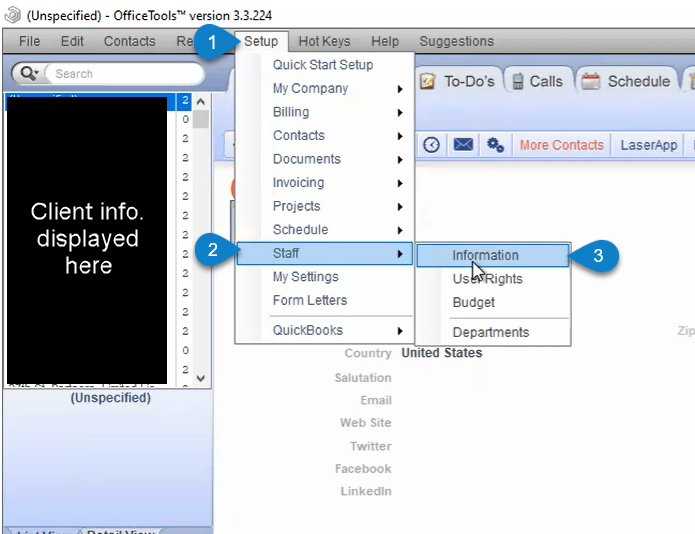
3. Once the Staff window displays, click on Admin, select on Billing Rates on the right-hand side, then click on the printer icon located on the left side under Admin tab, then select Preview. 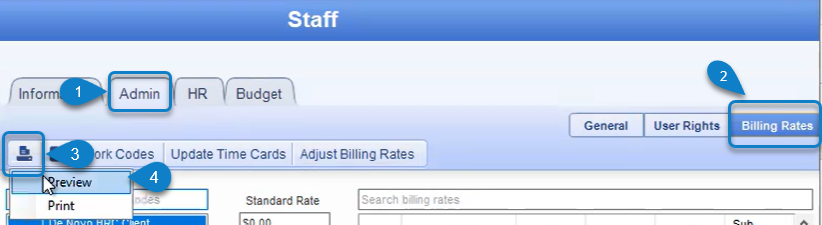
4. When the Report Viewer window pops up, click on the export report drive icon with an arrow located to the left of the printer icon. Seen below:

5. The Export Report window will pops up, name the file where it states File name, select the CSV option under the Save as type options, and click Save.
Export WIP Report:
To export the WIP data from Office Tools to a CSV file:
1. Log in to Practice Management
2. Go to Reports on the menu bar, select Billing Reports and wait for a pop-up window to display.

3. Once the Reports window displays, navigate to the Type section on the left and scroll down until you locate and select the WIP option. Then select Full Detail under the View box to open report.
NOTE: These are the only changes made in this window. Everything else stays the same.
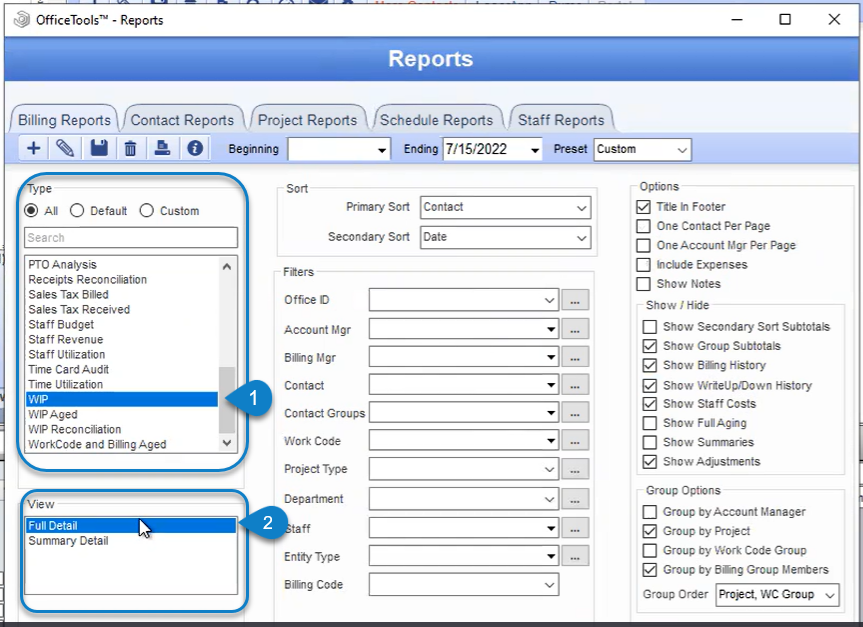
4. When the Report Viewer window displays, click on the export report drive icon with an arrow located to the left of the printer icon. Seen below:

5. The Export Report window will pop-up, name the file where it states File name, select the CSV option under the Save as type options, and click Save.
NOTE: It is more organized in PDF* version so it would be best to also export it as PDF to organize the data accordingly.
* To export as PDF, click on the printer icon instead and export file as PDF.
Export Fixed Fees Details:
To export the Invoicing data from Office Tools to a CSV file:
1. Log in to Practice Management
2. Go to Setup on the menu bar, select Invoicing, then click on the Reoccurring Invoicing option and wait for the Reoccurring Invoicing window to display.
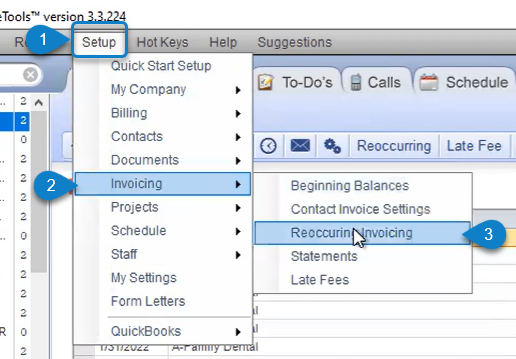
3. Once the Reoccurring Invoicing window has been displayed, locate and click on the Report button under the table as seen below.

4. When the Report Viewer window pops up, click on the export report drive icon with an arrow located to the left of the printer icon. Seen below:

5. The Export Report window will pop-up, name the file where it states File name, select the CSV option under the Save as type options, and click Save.
Export AR Details:
To export AR data from Office Tools to a CSV file:
1. Log in to Practice Management
2. Go to Reports on the menu bar, select Billing Reports and wait for a pop-up window to display.

3. Once the Reports window displays, navigate to the Type section on the left and locate and click A/R Aging option. Then select Partial Detail under the View box to open report.
NOTE: These are the only changes made in this window. Everything else stays the same.
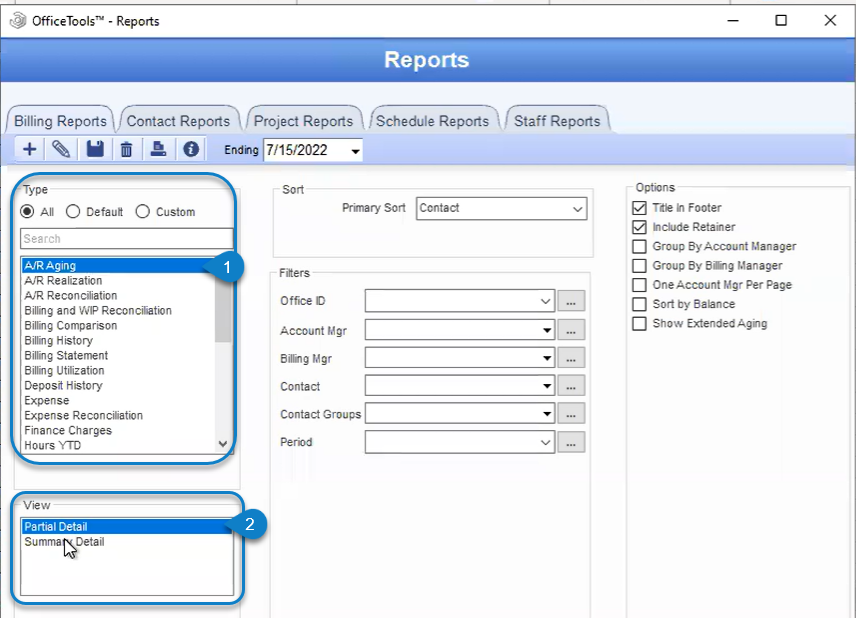
4. When the Report Viewer window displays, click on the export report drive icon with an arrow located to the left of the printer icon. Seen below:

5. The Export Report window will pop-up, name the file where it states File name, select the CSV option under the Save as type options, and click Save.
NOTE: It is more organized in PDF* version so it would be best to also export it as PDF to organize the data accordingly.
* To export as PDF, click on the printer icon instead and export file as PDF.
Export Project Definitions Details:
To export the Invoicing data from Office Tools to a CSV file:
1. Log in to Practice Management
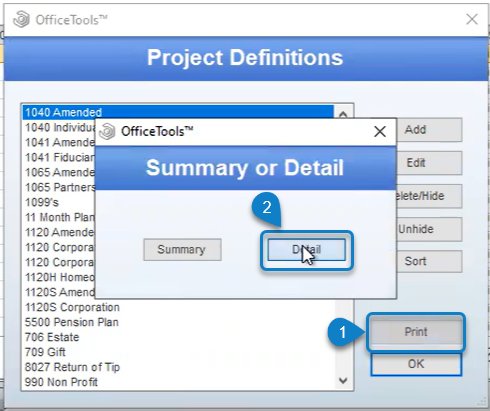
2. Go to Setup on the menu bar, select Projects, then click on the Project Definitions option and wait for the window to show.

3. Click Print, then Detail button on pop-up window.
4. When the Report Viewer window displays, click on the export report drive icon with an arrow located to the left of the printer icon. Seen below:

5. The Export Report window will pop-up, name the file where it states File name, select the CSV option under the Save as type options, and click Save.
NOTE: It is more organized in PDF* version so it would be best to also export it as PDF to organize the data accordingly.
* To export as PDF, click on the printer icon instead and export file as PDF.
Export Open Projects:
To export the Invoicing data from Office Tools to a CSV file:
1. Log in to Practice Management
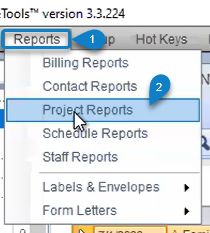
2. Go to Reports on the menu bar, select Project Reports, then wait for a window to display.
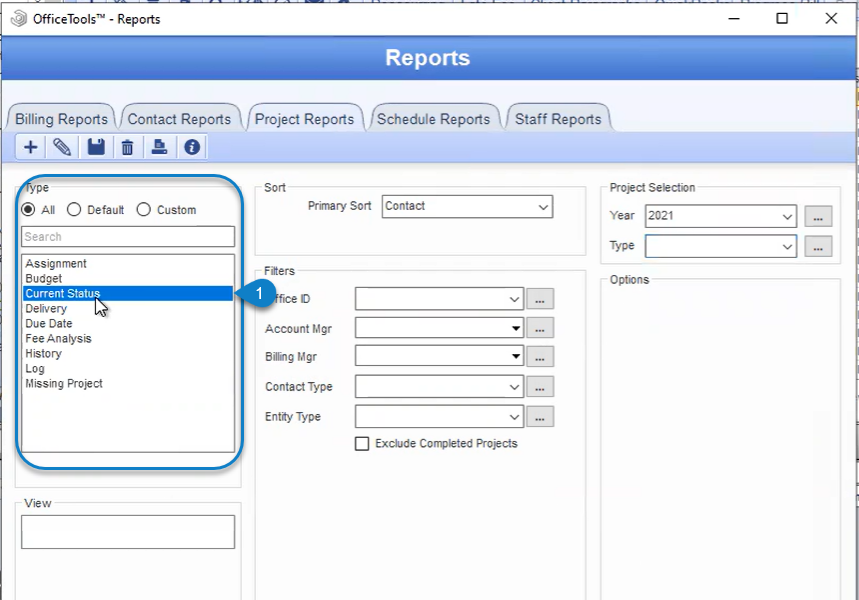
3. Once the Reports window shows up, navigate to and click on Current Status under the Type section of the window.
4. When the Report Viewer window displays, click on the export report drive icon with an arrow located to the left of the printer icon. Seen below:

5. The Export Report window will pop-up, name the file where it states File name, select the CSV option under the Save as type options, and click Save.
NOTE: WIP is tied to (Unprocessed) status if shown in the report.
NOTE: It is more organized in PDF* version so it would be best to also export it as PDF to organize the data accordingly.
* To export as PDF, click on the printer icon instead and export file as PDF.