In this tutorial, you'll learn how to efficiently search, filter, and organize documents within Firm360 using the Search Criteria Filter and Folder Management tools.
Key Topics Covered:
Using the Search Criteria Filter – Learn how to quickly locate documents using advanced search options.
Creating & Organizing Folders – Understand how to create and manage folders to keep client documents structured.
Global Folder Naming – Discover how to set up standardized Global Folders, ensuring consistent folder organization across all clients.
This video will help you streamline document management, improve search efficiency, and maintain a well-organized filing system in Firm360.
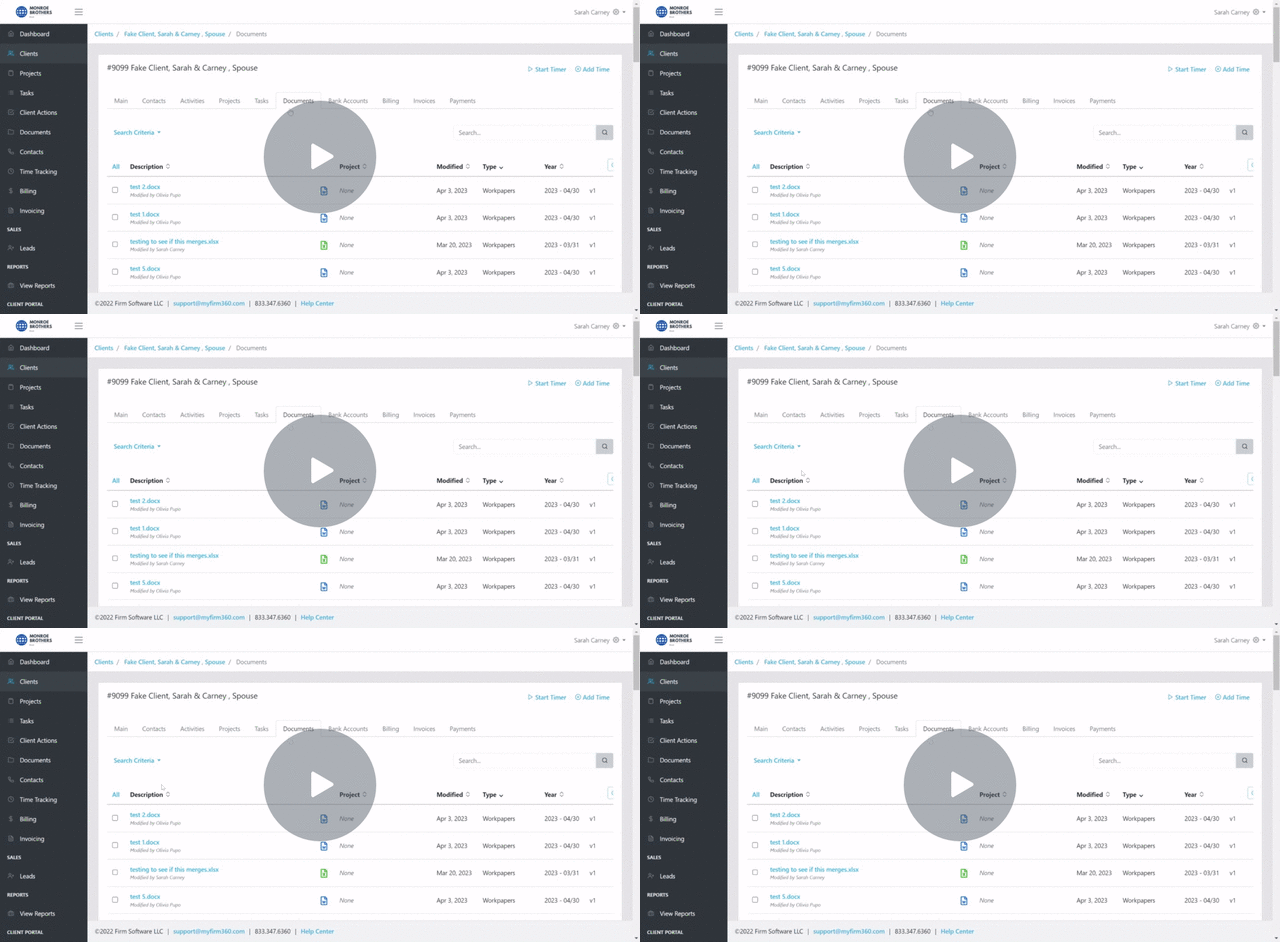
Enhanced Document Search: Finding Unfiled Documents
In addition to searching for documents within folders, you can now search for documents that are not assigned to any folder.
How to Find Documents Without a Folder:
- Navigate to the Documents tab under your client’s profile.
- Click on the "All" dropdown menu.
- Select "No Folder" to filter and view only unfiled documents.
- Note: If no documents exist outside of folders, the "No Folder" option will not be displayed.
Folder Organization:
- Folders are displayed in chronological order, with the most recent year at the top.
- After the most recent year, folders are listed alphabetically for easy navigation.
This update makes it easier to locate misplaced files and ensures a more organized document management process within Firm360. 🚀
There is also the ability to search for documents that have 'Client Portal Access Enabled' or 'Client Portal Access Not Enabled' in the search criteria drop down menu.
There is also an option to create global document folders. Global folders ensure consistent folder naming throughout your platform To do so, please follow the steps below.
1. Click Customizations
2. Click Document Global Folders
3. Click Add
4. Fill out the Name of the folder
5. Click Save
You can remove the folder from the Global tab by clicking the Inactive button under the Document Global section of Customizations.
If you accidentally make a folder inactive, you will click Show Inactive, locate the folder you wish to make active, click Edit, and then uncheck the Inactive button.
Once you've created your Global folders, you can assign them to a client by following the steps below.
1. Click on the Client tab
2. Select the Client you wish to add folders to
3. Click the document tab
4. Select the documents you want to move to a folder
5. Click the Gear drop-down
6. Click Move to Folder
7. Select the folder you wish to move the documents to
8. Click move